IPTV packet loss FEC: stop it in large venues
IPTV packet loss FEC is a common challenge in stadium‑scale deployments, and this guide shows exactly how to address it. By applying Forward Error Correction you can keep every decoding device showing a smooth picture even when the network drops packets.
- Understand why packet loss happens in stadium scale IPTV networks.
- See how Forward Error Correction (FEC) can conceal lost packets.
- Follow a step‑by‑step method to enable FEC on the head end.
- Know the metrics to watch when rolling FEC out.
- Get a clear next step to configure your venue.
Key points you will get - The common causes of packet loss in large venues. - How FEC works and why it helps. - A concise configuration checklist for the head end. - Which metrics to monitor after enabling FEC. - Where to find detailed product guidance.
IPTV packet loss FEC can cripple live broadcasts in large venues, causing frozen frames and visual artefacts for hundreds of decoding devices. Implementing Forward Error Correction (FEC) with IPTV packet loss FEC ensures smooth playback across the venue.
IPTV packet loss FEC
The problem starts with long haul Ethernet or fibre links that cross several switches and distribution points. Congestion on any link, buffer overflow in a switch, or occasional physical‑layer errors can cause individual UDP packets to be dropped. Because IPTV streams often rely on UDP for low latency, there is no automatic retransmission, so a lost packet may result in a momentary freeze or a visual artefact on every decoding device tuned to that channel.
How does Forward Error Correction mitigate packet loss?
Forward Error Correction (FEC) works by transmitting extra parity packets along with the original video payload. The receiver can reconstruct missing data as long as the number of lost packets does not exceed the redundancy level. The principle is described in RFC 9330, which defines a flexible FEC framework for real‑time transport streams. By adding redundancy at the head end, the network can conceal occasional losses without needing a round‑trip request for retransmission. More details on FEC benefits are discussed in a TVTechnology overview.
How to enable FEC with Vivo
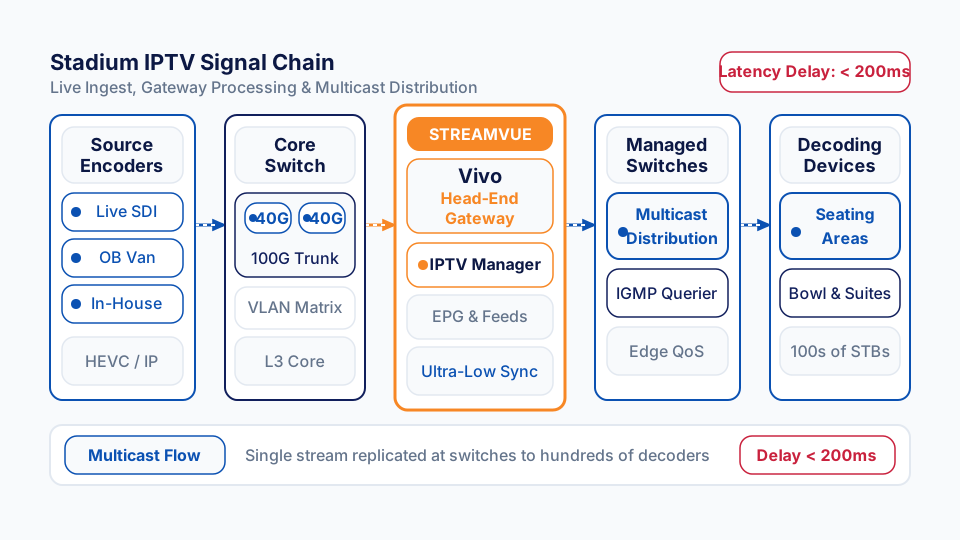
The head‑end gateway aggregates live video sources and distributes them as channels across a venue network. It provides a portal per signal path where input, processing and output are configured in a single view. To enable FEC, open the portal for the relevant channel and set the “Error correction” option to the desired redundancy profile. For full guidance see the Vivo solution page.
When FEC is active, the head end generates parity packets alongside each video packet. These packets travel the same multicast or unicast path to the venue network. Decoding devices that support FEC will use the parity information to rebuild any missing video packets before rendering, keeping picture sync stable even when occasional packet loss occurs.
Step by step method to enable FEC
- Log into the web console and select the channel you wish to protect.
- In the portal view, locate the “Error correction” setting.
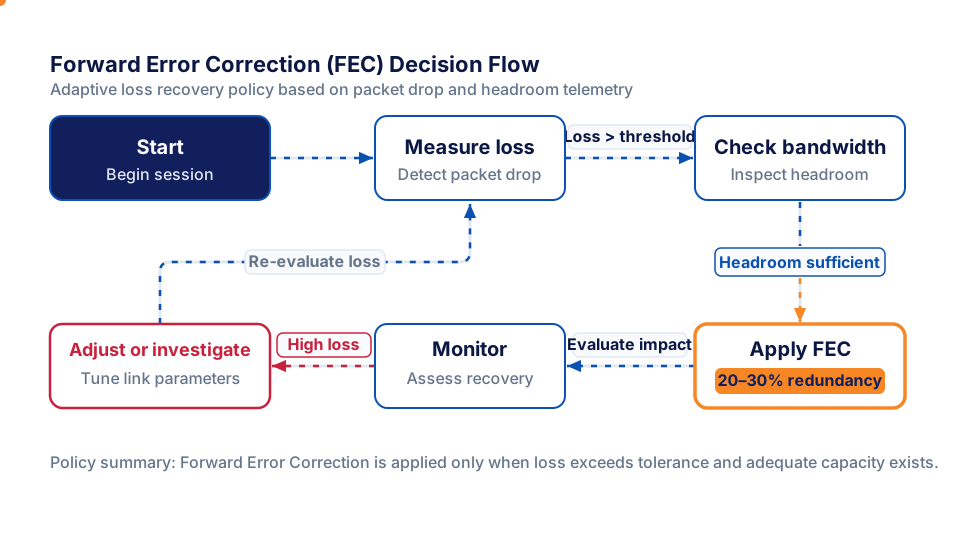
- Choose a redundancy level such as 20 % or 30 % based on your bandwidth headroom.
- Save the portal configuration; the change propagates instantly to the head end.
- Verify that decoding devices report “FEC active” in their status pages.
Worked example: applying FEC in a large arena
Imagine a large arena broadcasting a live sporting event on its main entertainment channel. The engineer enables a modest FEC redundancy on that channel using the steps above. After the change, monitoring shows a reduced packet loss rate during peak crowd‑generated traffic, and viewers report a smoother picture with no visible artefacts. The same approach can be replicated for secondary feeds with lower redundancy levels to balance bandwidth usage.
For a large‑venue example see the Stadium case study.
What to monitor after enabling FEC
After enabling FEC, keep an eye on these metrics:
- Packet loss rate, ensure it stays below the redundancy threshold.
- Latency impact, FEC adds a small processing delay, verify it remains within acceptable bounds for live events.
- Decoder health, check that each decoding device reports successful FEC recovery.
Industry reports describe gateways that add FEC to IPTV streams, noting that the overhead is modest compared with the benefit of uninterrupted playback. Regularly reviewing these metrics will help you fine‑tune the redundancy level for your specific venue topology.
When you implement IPTV packet loss FEC, you minimise interruptions across the venue and improve viewer experience.
Trade offs and practical considerations
While FEC can mask packet loss, it consumes additional bandwidth proportional to the redundancy factor. In a venue with many high‑definition channels, you may need to ensure the backbone can accommodate the extra load. A common approach is to apply FEC only to critical channels, for example the main event feed, and leave less essential feeds without it. This balances robustness with efficient use of network capacity.
Another consideration is decoder capability. Not every decoding device supports FEC out of the box. Verify that the decoding devices in your deployment are configured to recognise and process the parity packets, otherwise the extra traffic will be ignored, providing no benefit.
Capacity planning is essential: perform a baseline measurement of current utilisation, then simulate the added FEC traffic to confirm headroom. If the calculation shows a risk of congestion, consider segmenting the network or upgrading core switches before enabling higher redundancy levels.
Common pitfalls and how to avoid them
- Over‑provisioning redundancy, using a very high redundancy level can double bandwidth use without a proportional gain in reliability. Start with a modest level, for example twenty percent, and increase only if loss metrics justify it.
- Mismatched configurations, the head end and the decoding devices must agree on the FEC scheme. A mismatch will cause the decoder to discard parity packets, resulting in visual artefacts.
- Ignoring network health, FEC does not fix underlying congestion. Continue to monitor switch utilisation and perform capacity planning alongside FEC deployment.
- Insufficient decoder support, some older decoding devices may only support basic FEC profiles. Verify firmware versions and, if necessary, schedule updates before rolling out the configuration.
What question will you ask next?
After you have enabled FEC, the next logical question is how to confirm it is working. Look for decoder status reports that indicate “FEC recovered” or examine the packet loss statistics on your monitoring system for a noticeable drop after the change.
Next steps for your venue
If you are ready to protect your stadium IPTV service, see the Vivo solution page for detailed instructions.
Further reading: - Forward Error Correction overview (RFC 9330) - How FEC improves reliability in IPTV networks